How can we help?
Modify or edit a plan
Delete an item in your plan
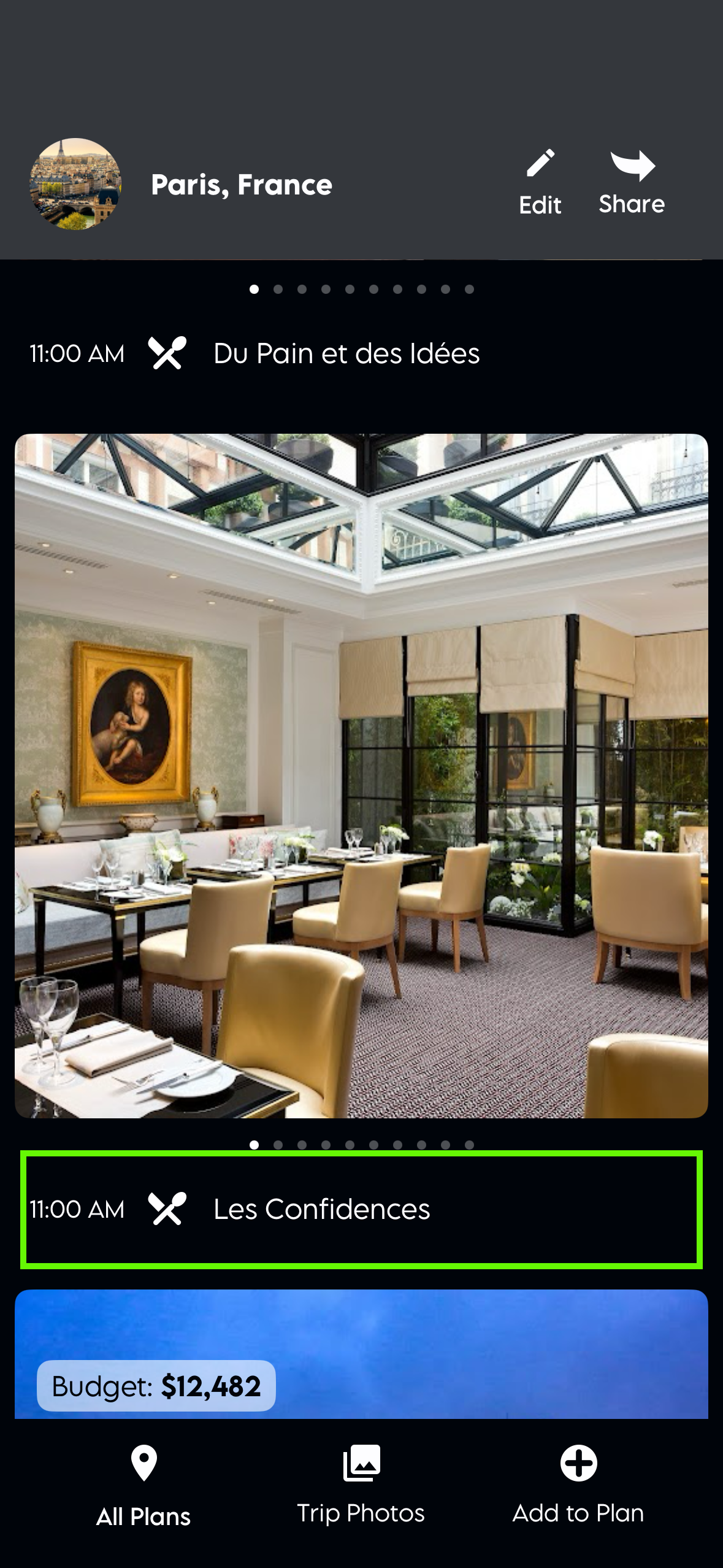
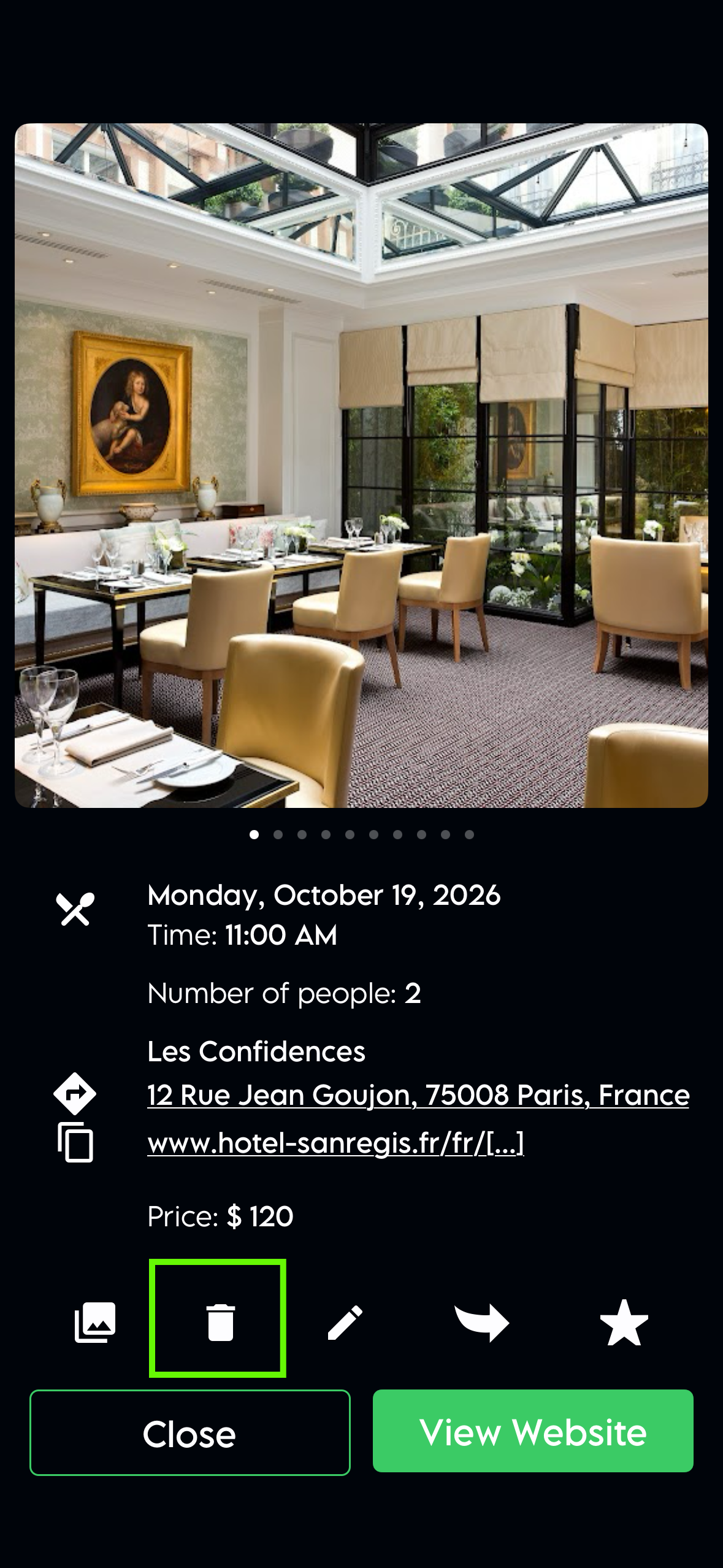
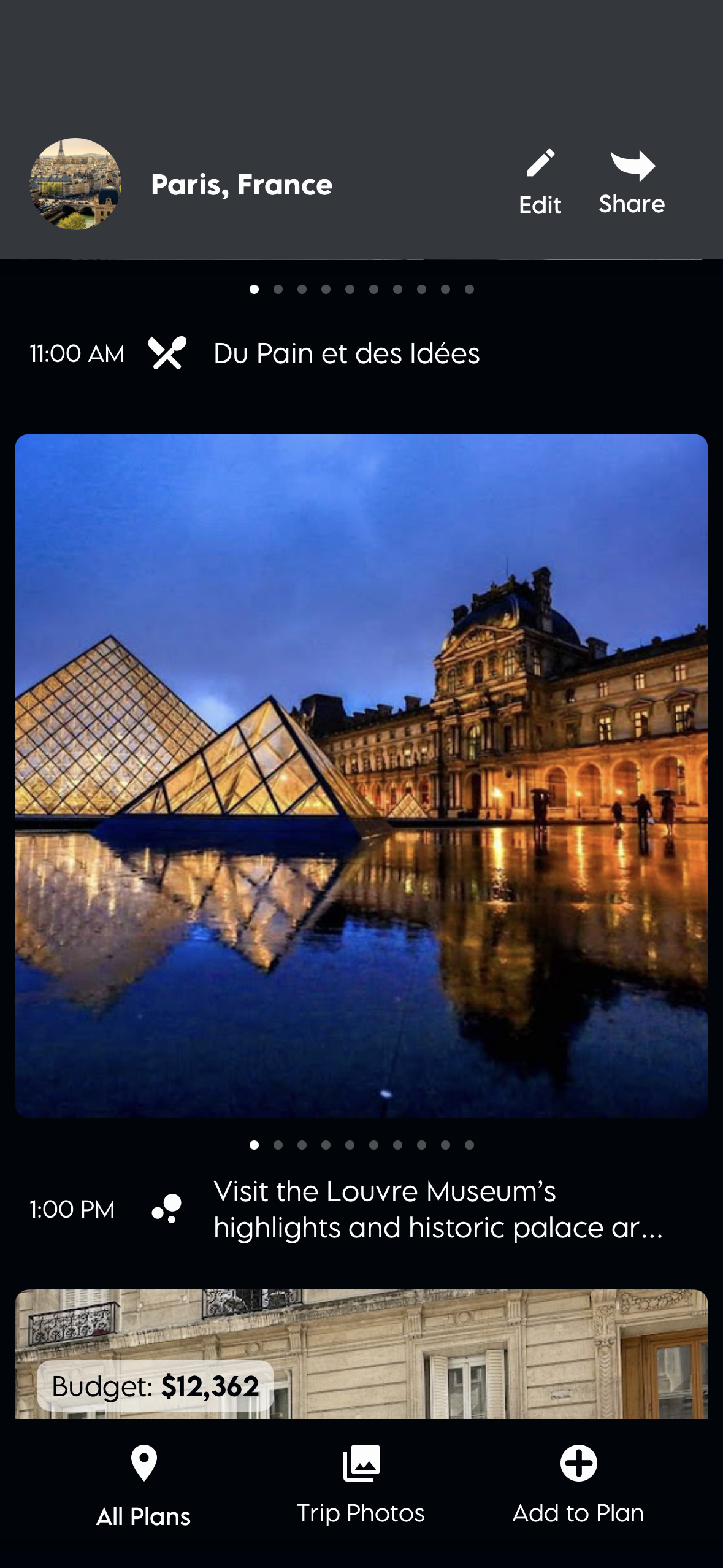
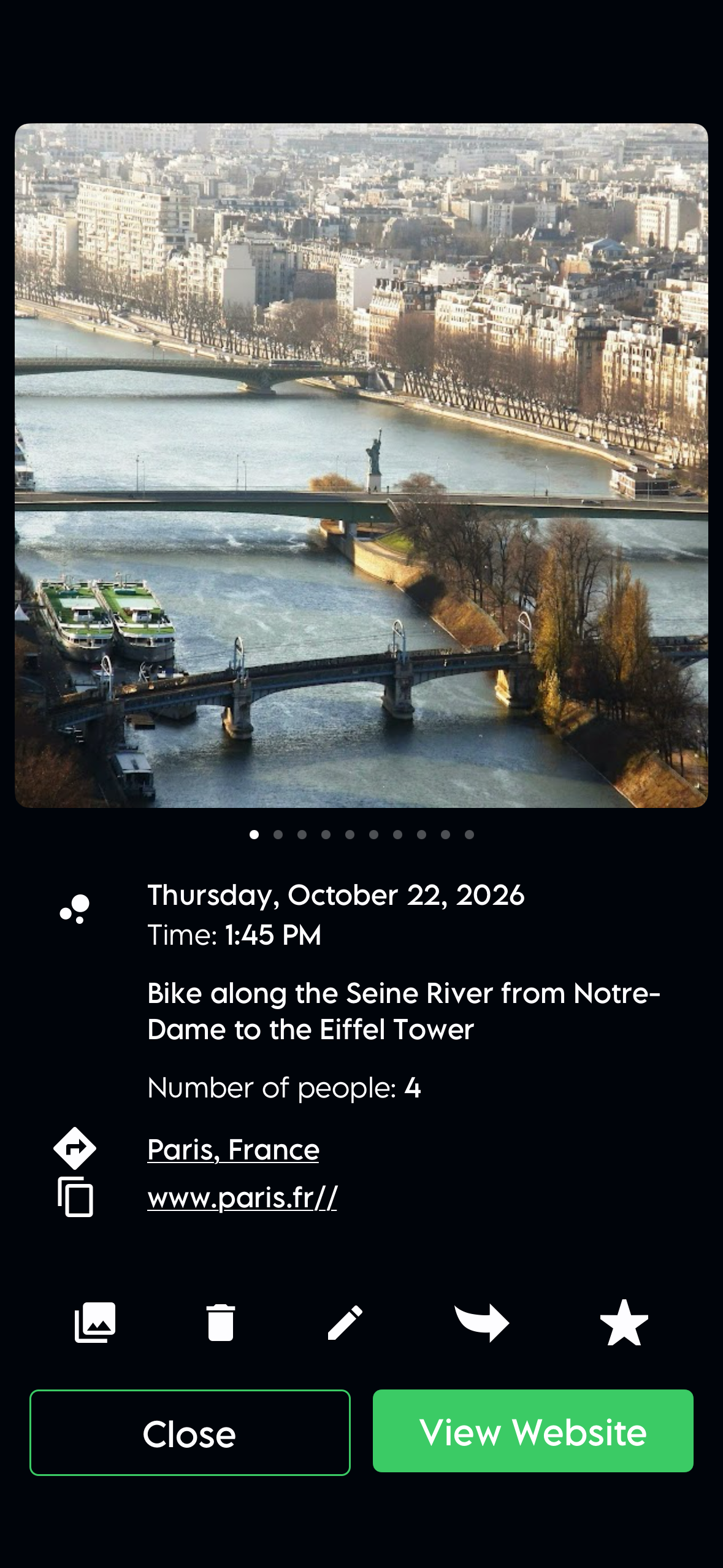
To delete an item from your plan, tap the item you'd like to remove, select the delete icon and it's removed from the plan.
How do I edit an item in the plan?
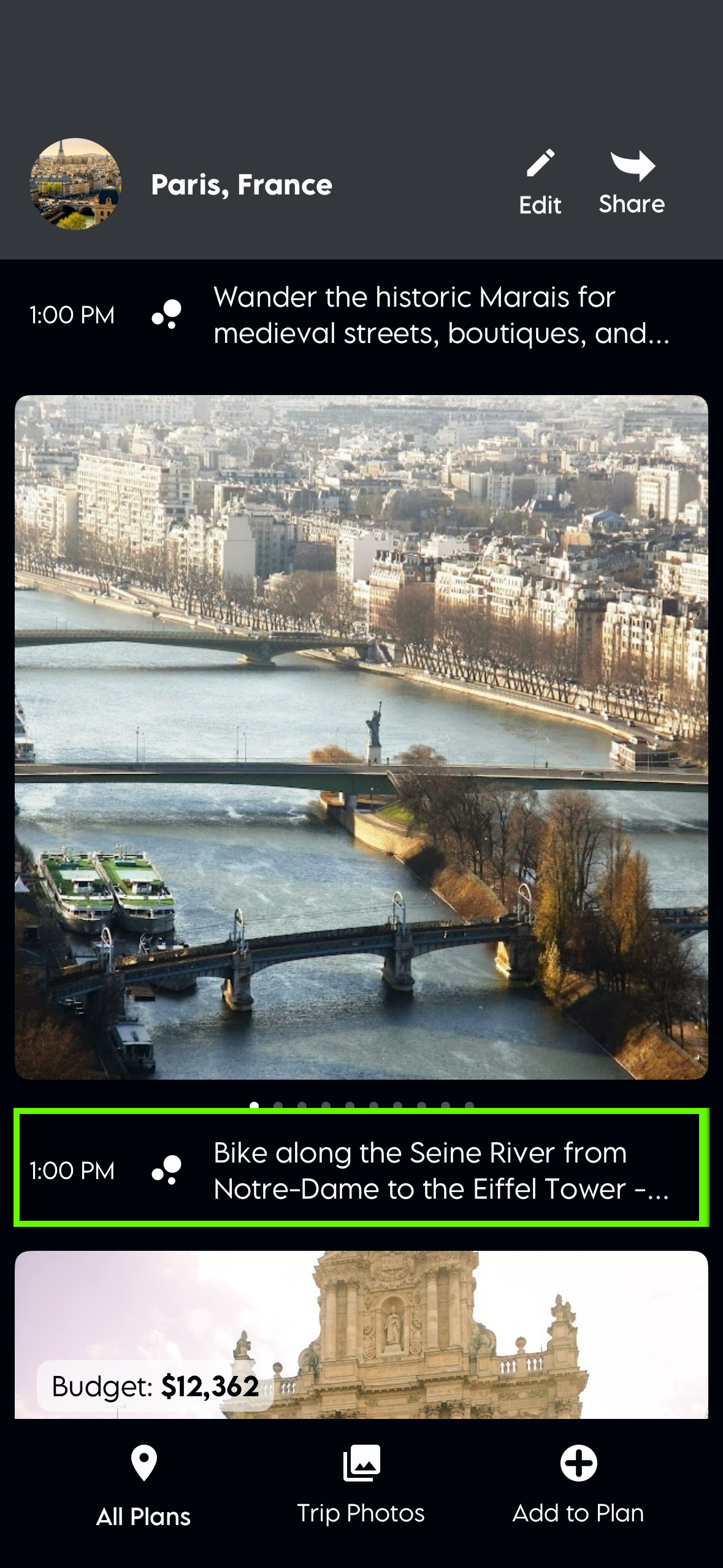
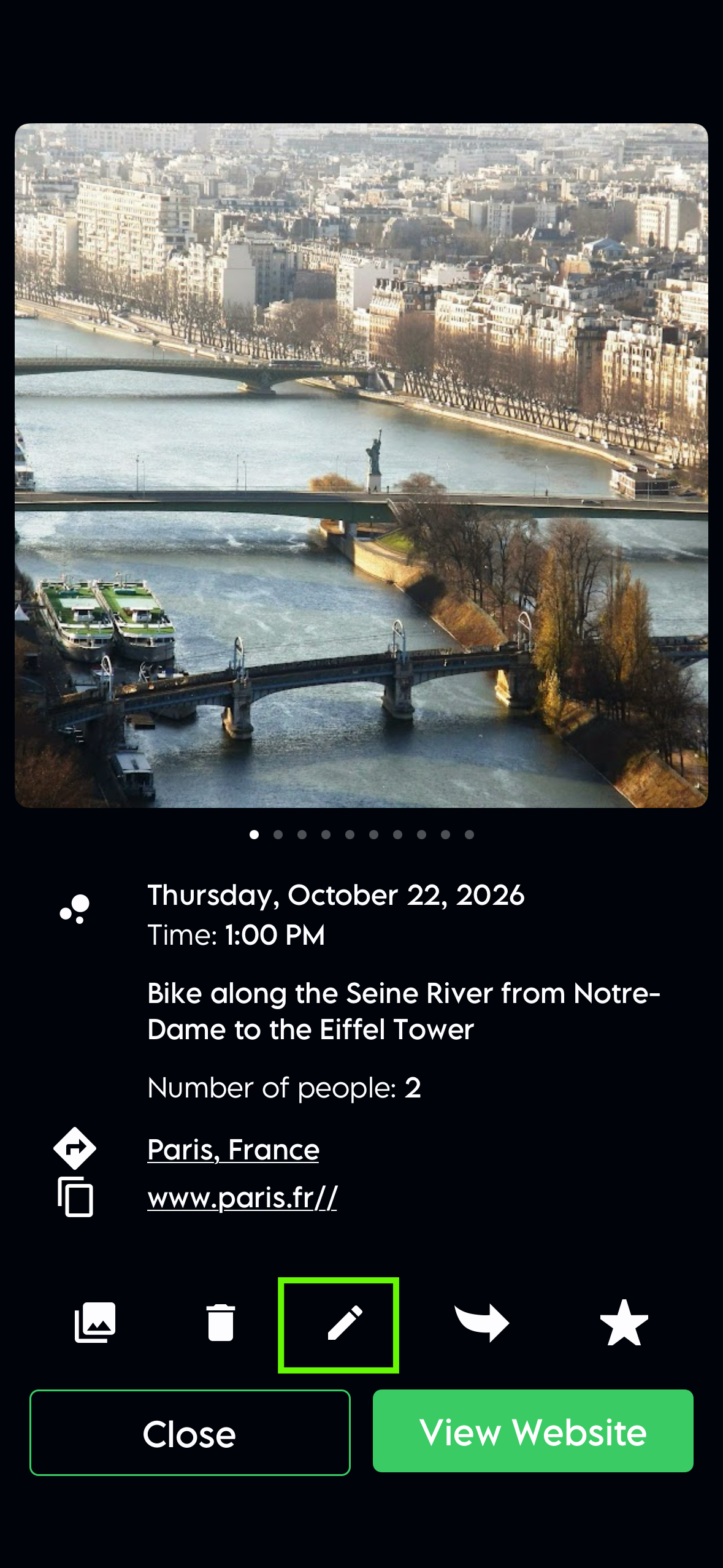
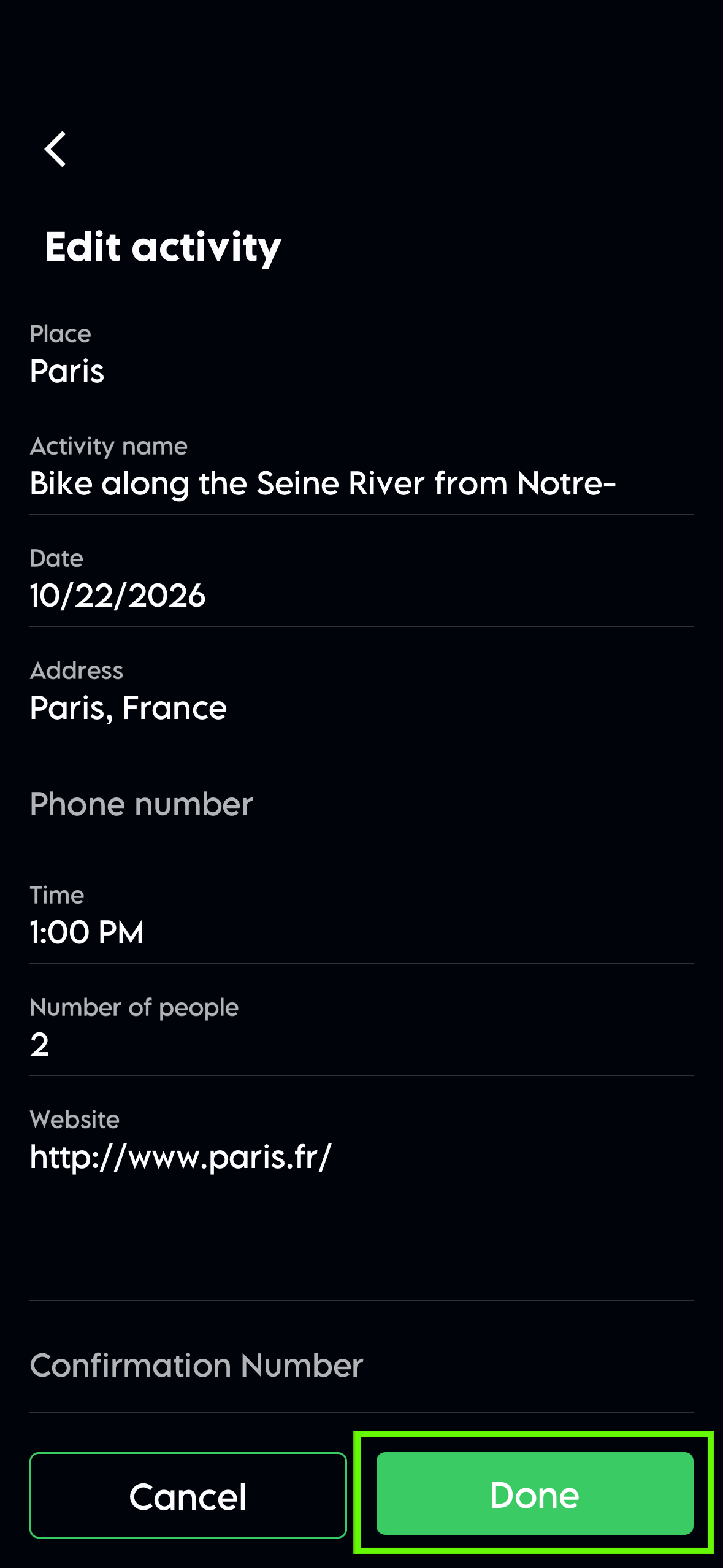
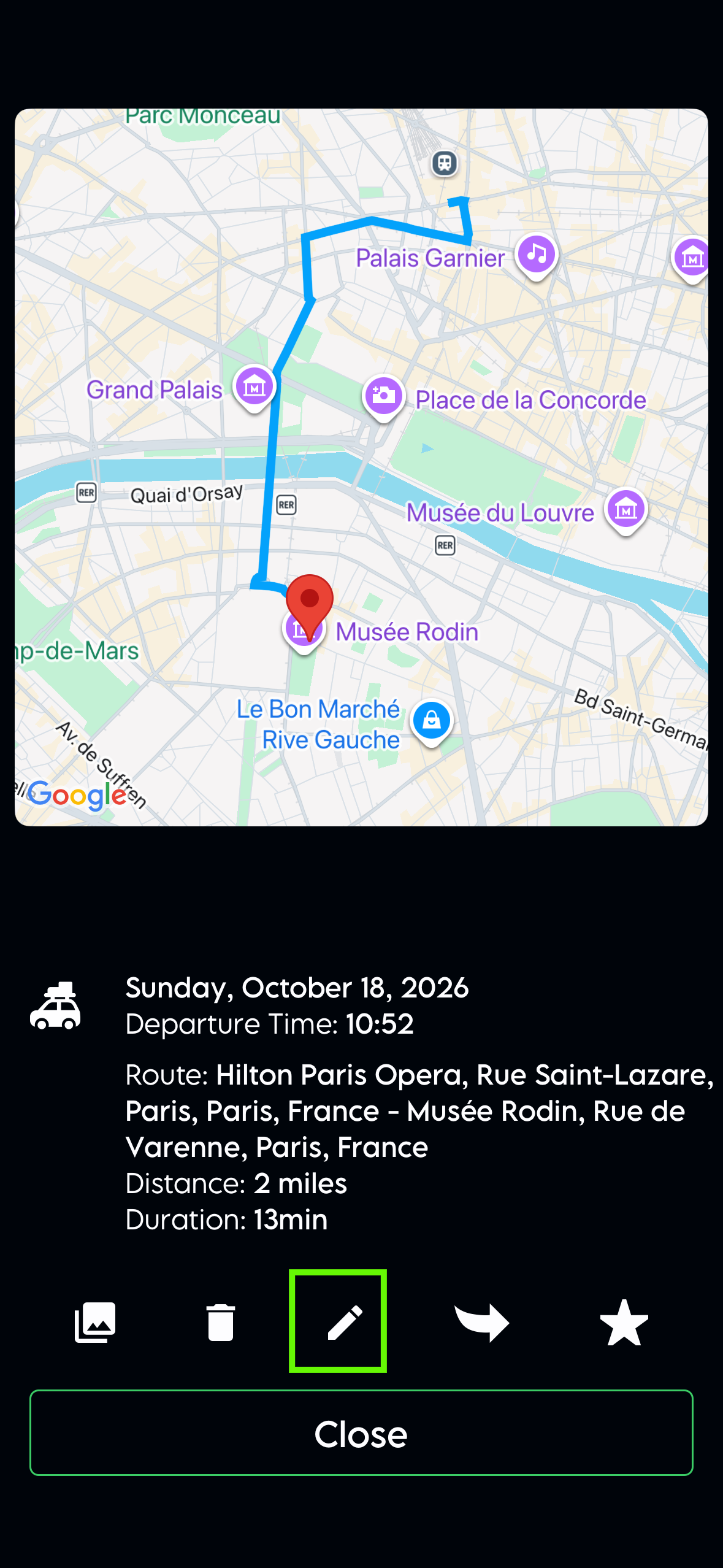
Select any item in your plan and click the edit icon to make changes. When you’re done updating it, click Done. The next time you select that item, you’ll see your changes there.
Change the dates of a plan
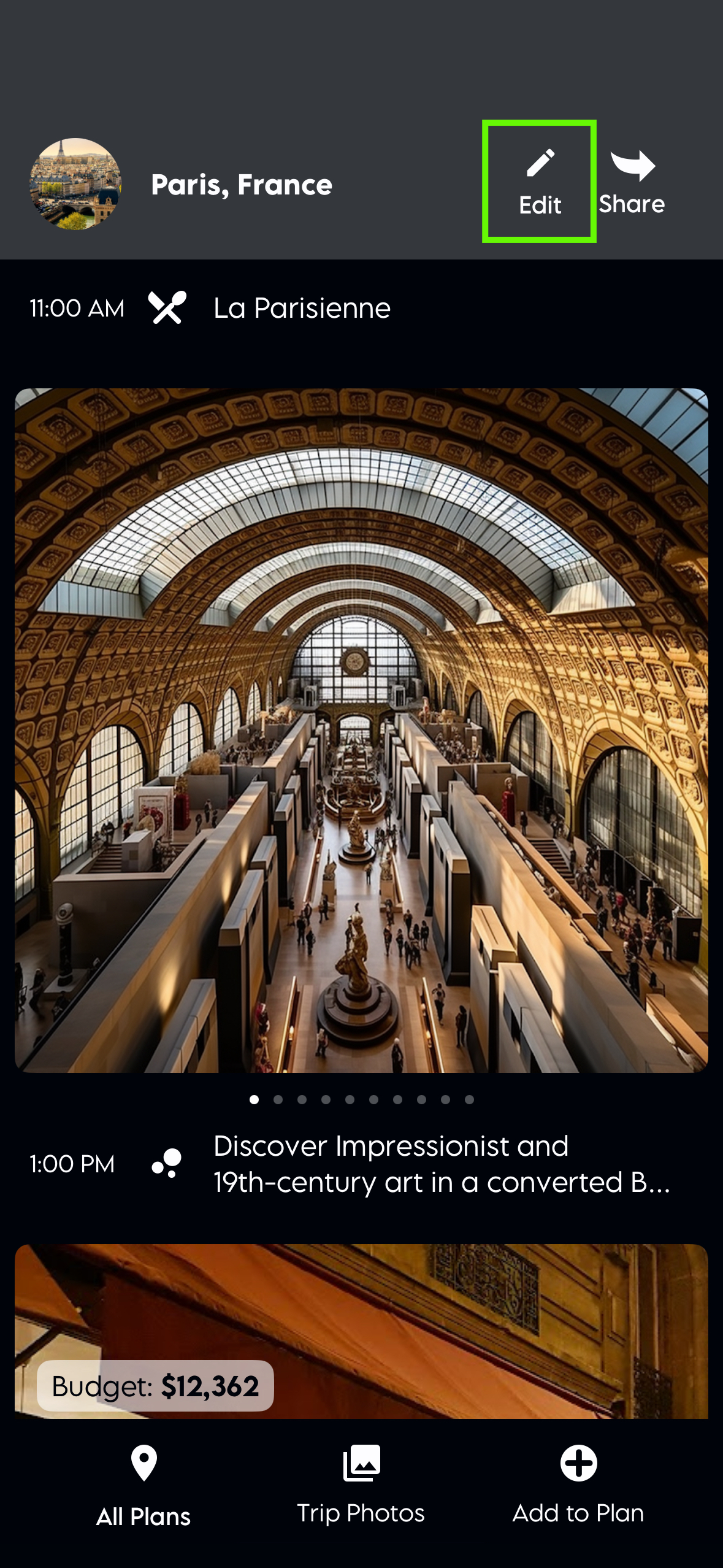
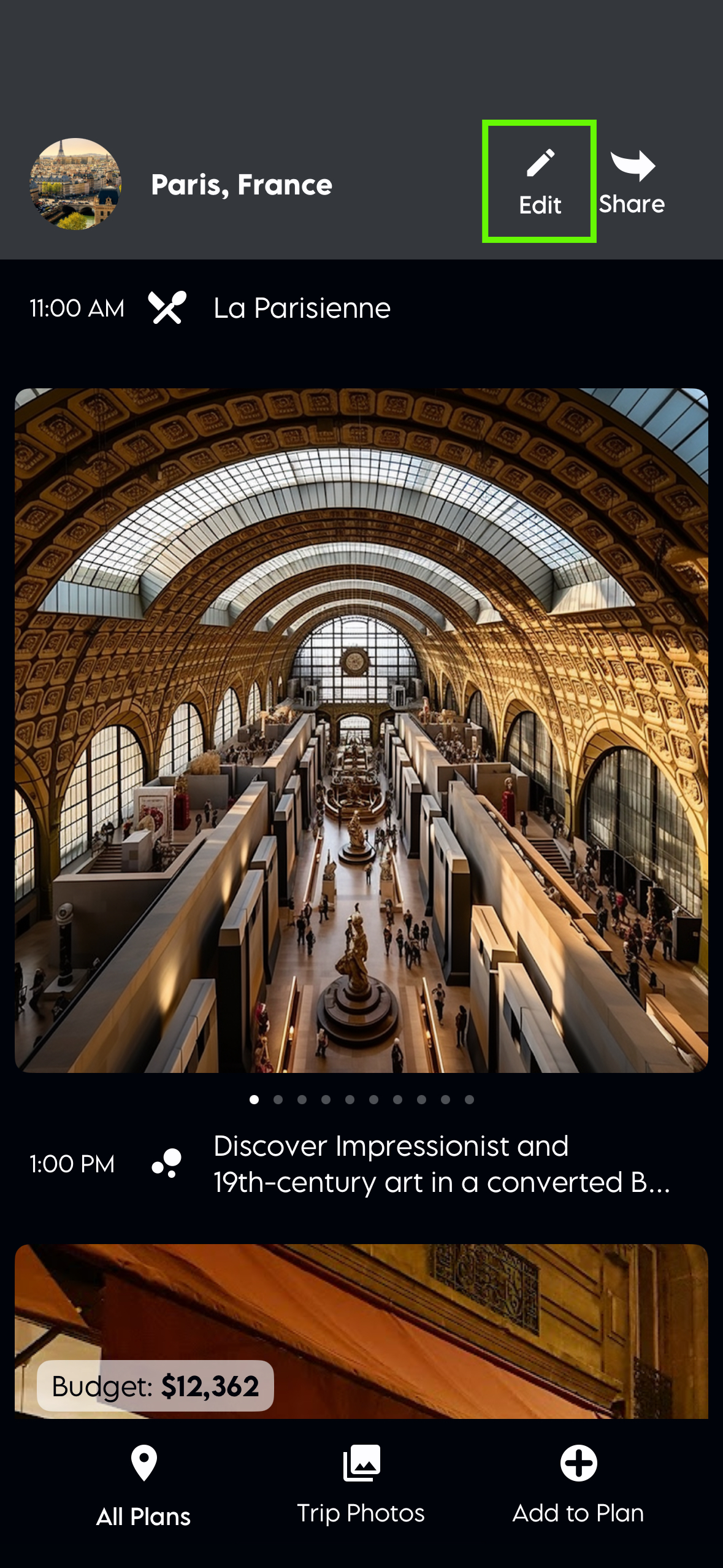
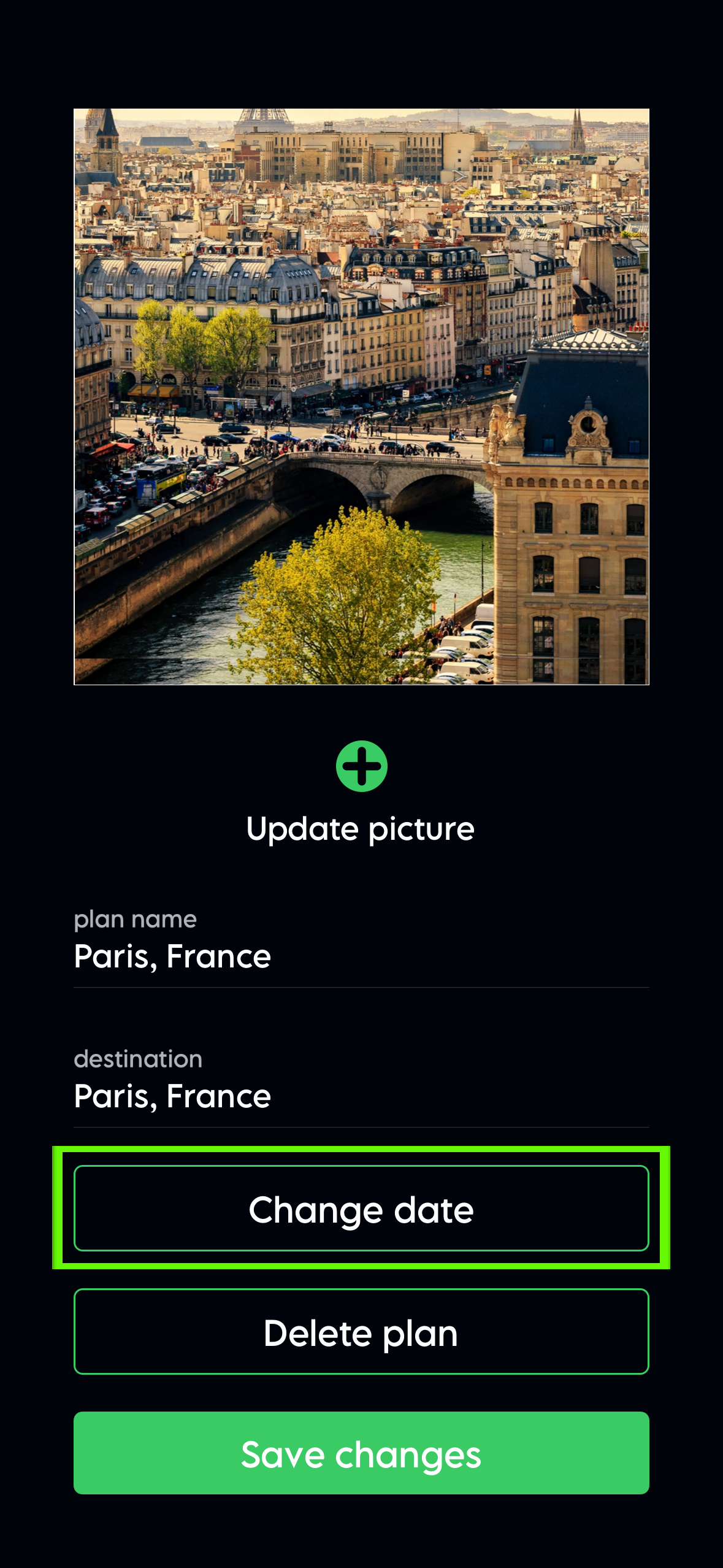
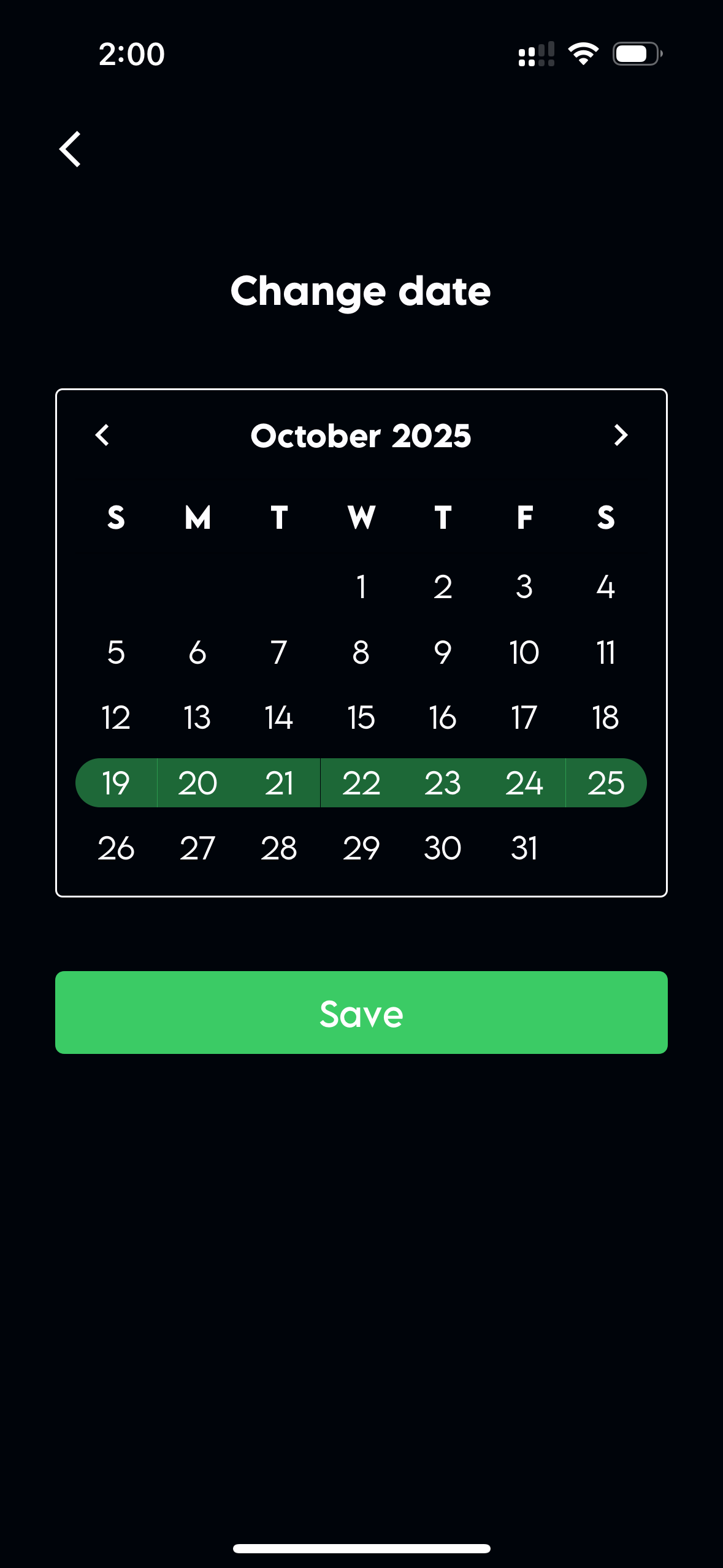
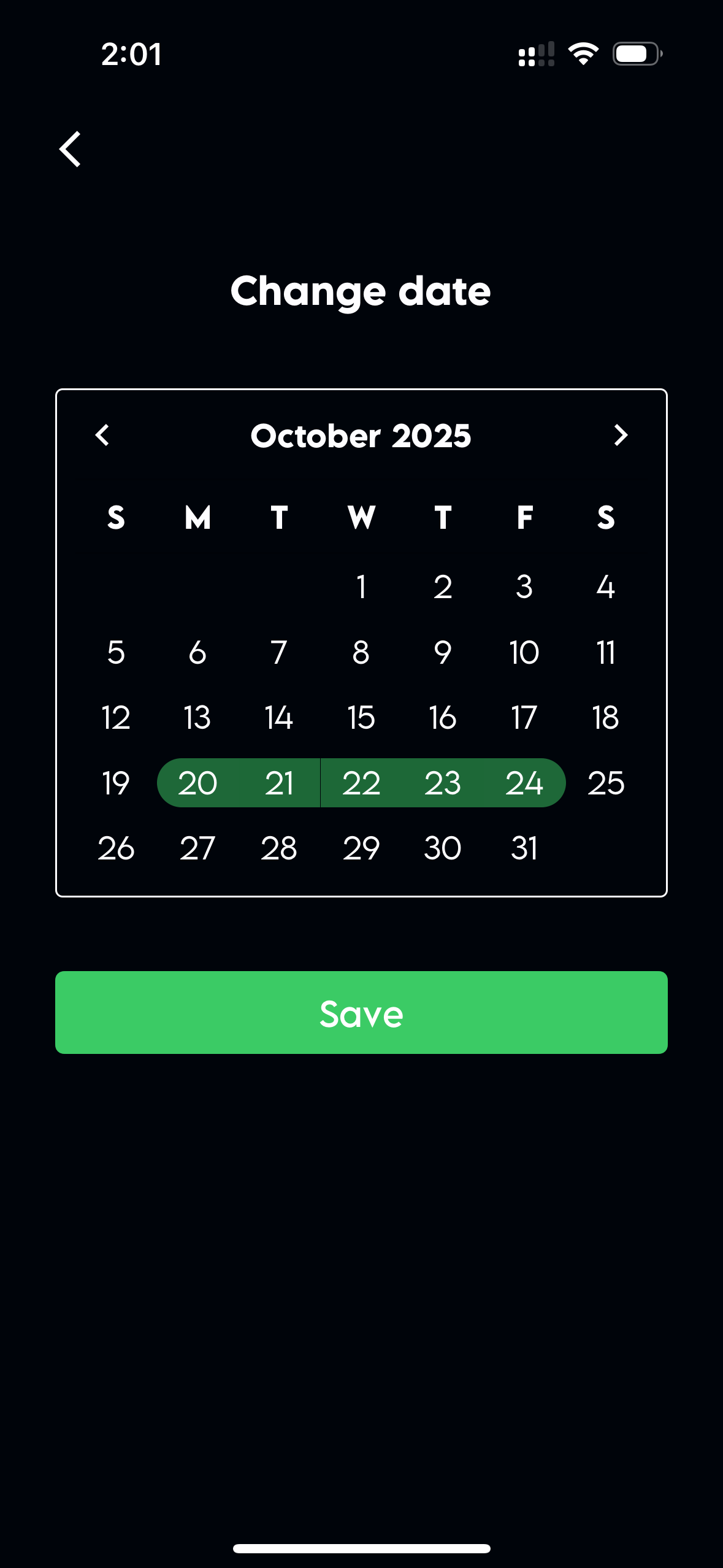
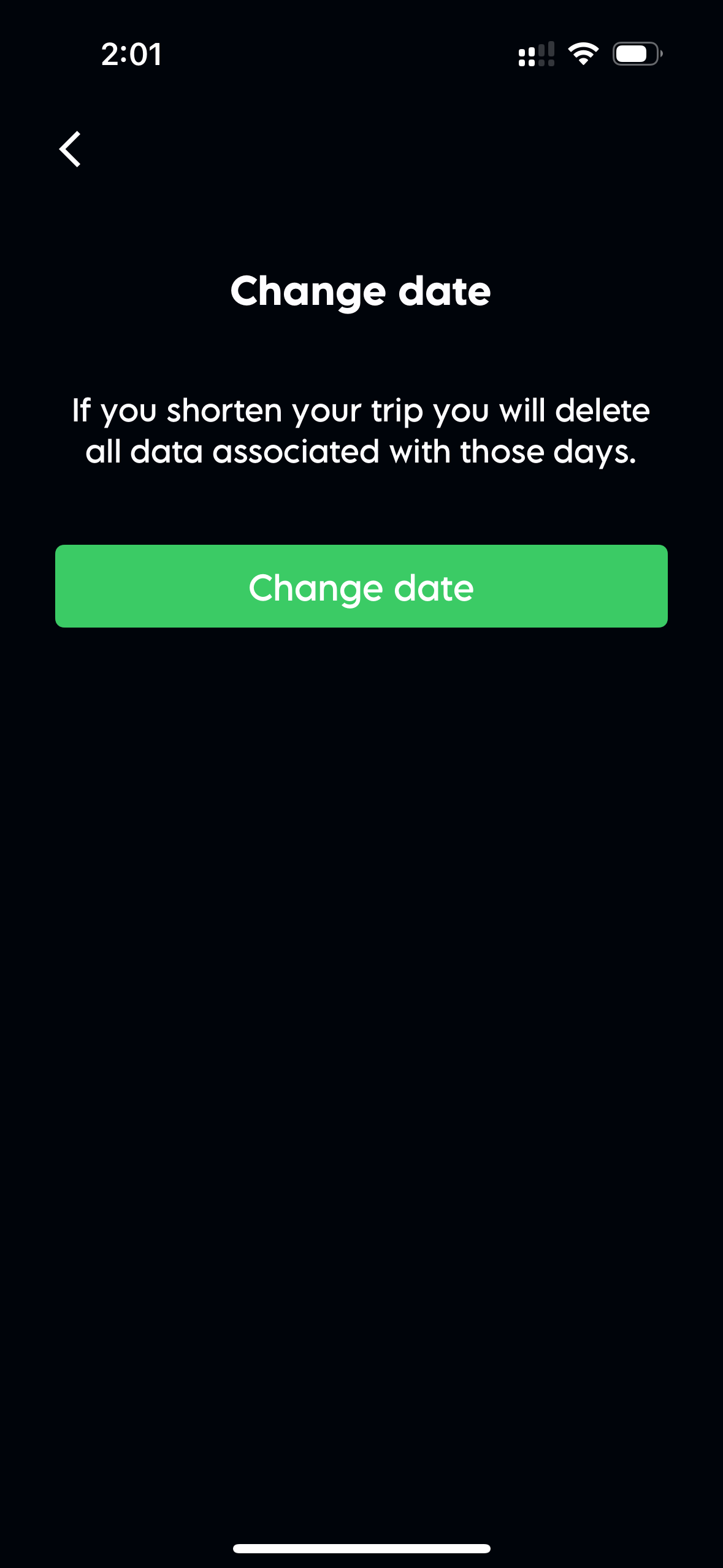
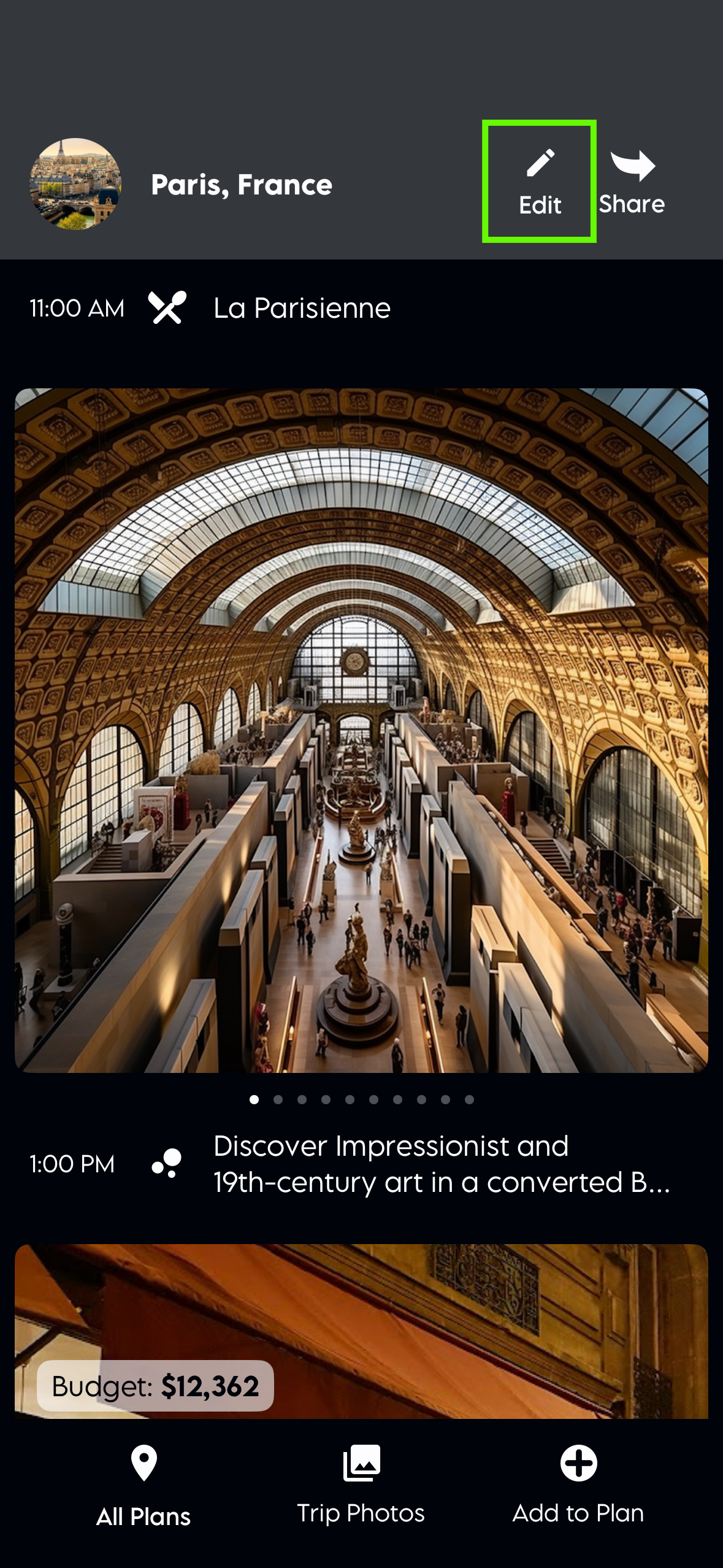
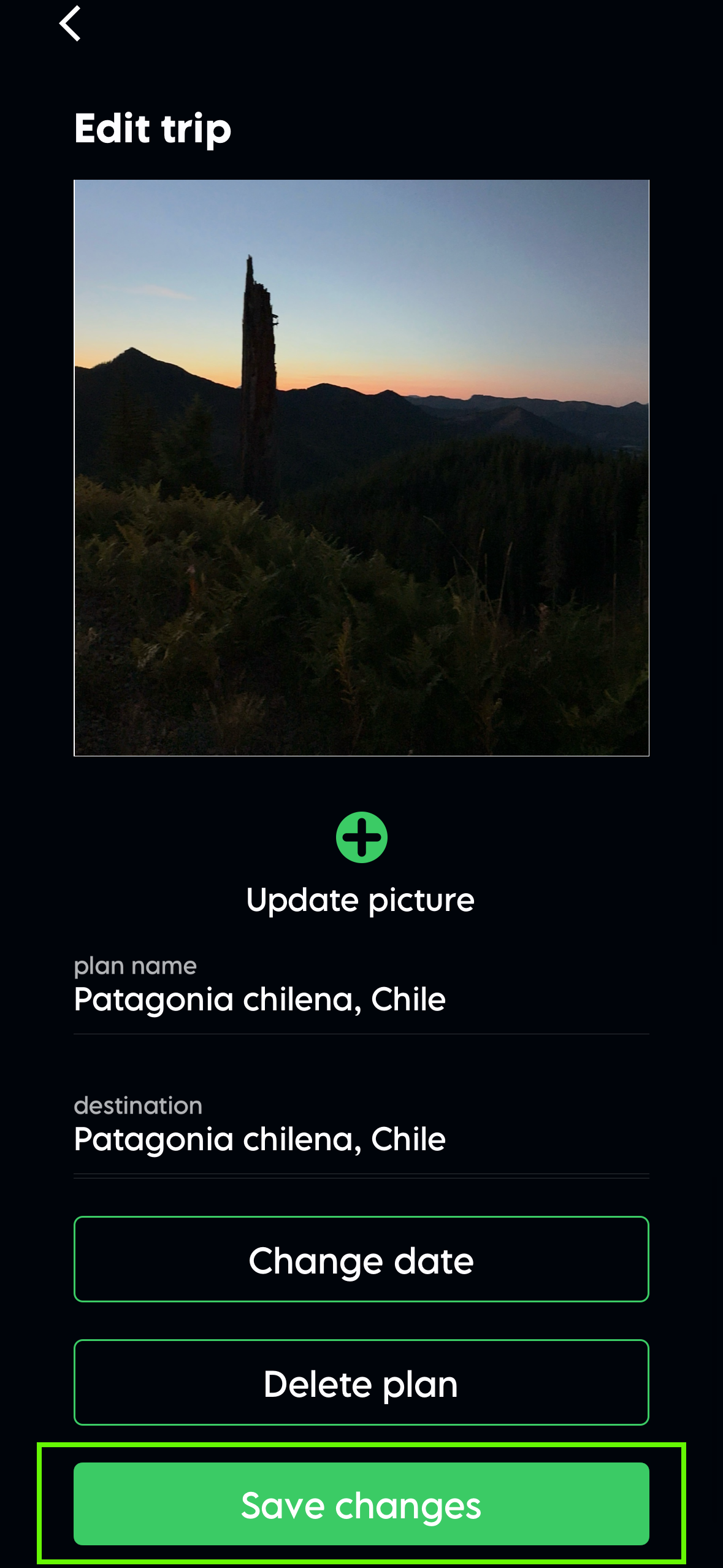
At the top of your plan, there’s an edit button. Tap that and scroll down until you see the change dates button. When you change the dates, the items in the plan will be saved, unless the item dates fall outside the plan dates.
Edit the plan or can't edit a plan
If you can’t edit a plan at all, there could be several reasons why you can’t edit a plan. The first thing to check is whether the plan is in the past or the future. Plans that are in the past can’t be edited.
If the plan is in the future and you still can’t edit it, the next thing to find out is if it was shared with you. If someone shared the plan with you but you can’t edit it, they may have set the sharing option incorrectly. The best way to fix this is to have the friends stop sharing the plan with you and then share it with you again, but this time as a co-planner. They should share a new link with you. When you use this new link to open the plan, you should be able to edit it.
Change the cover photo
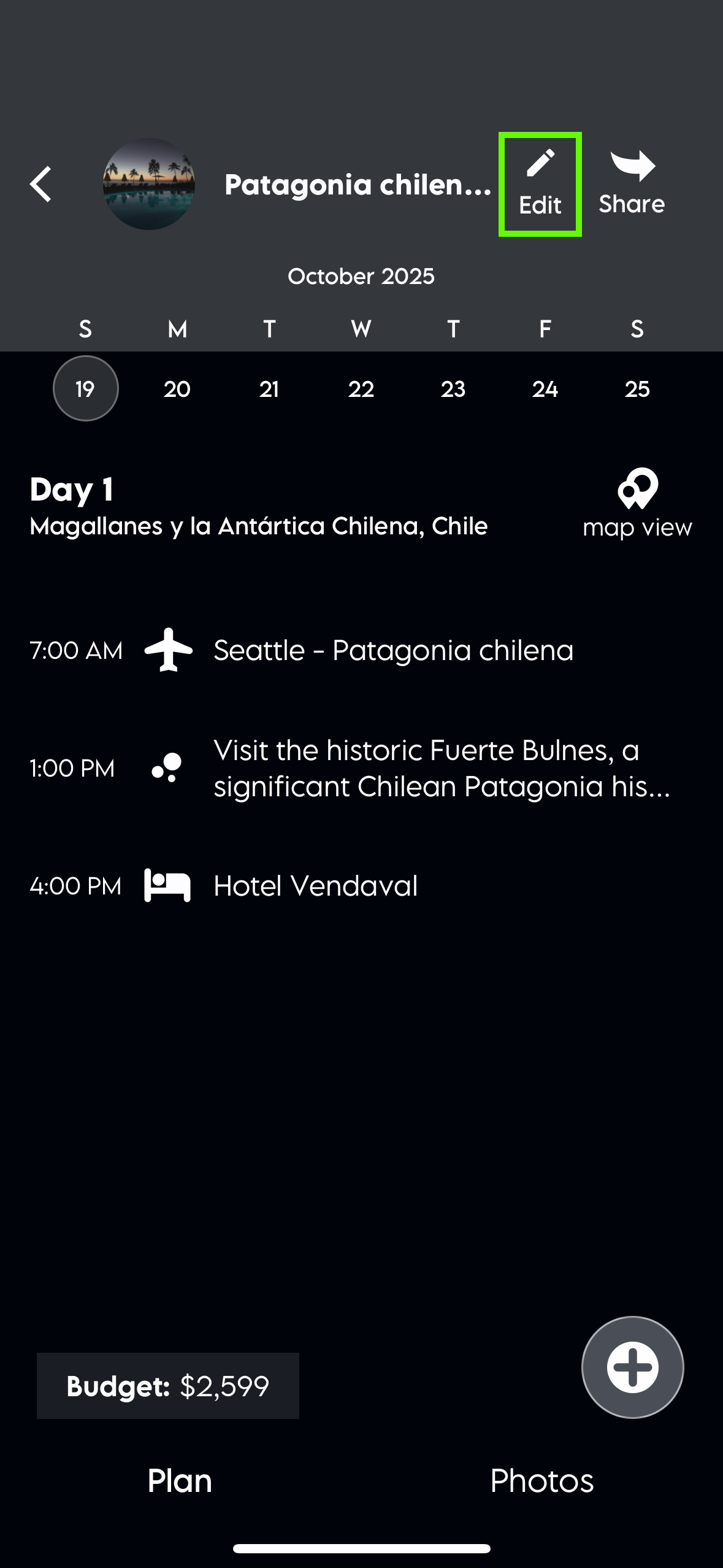
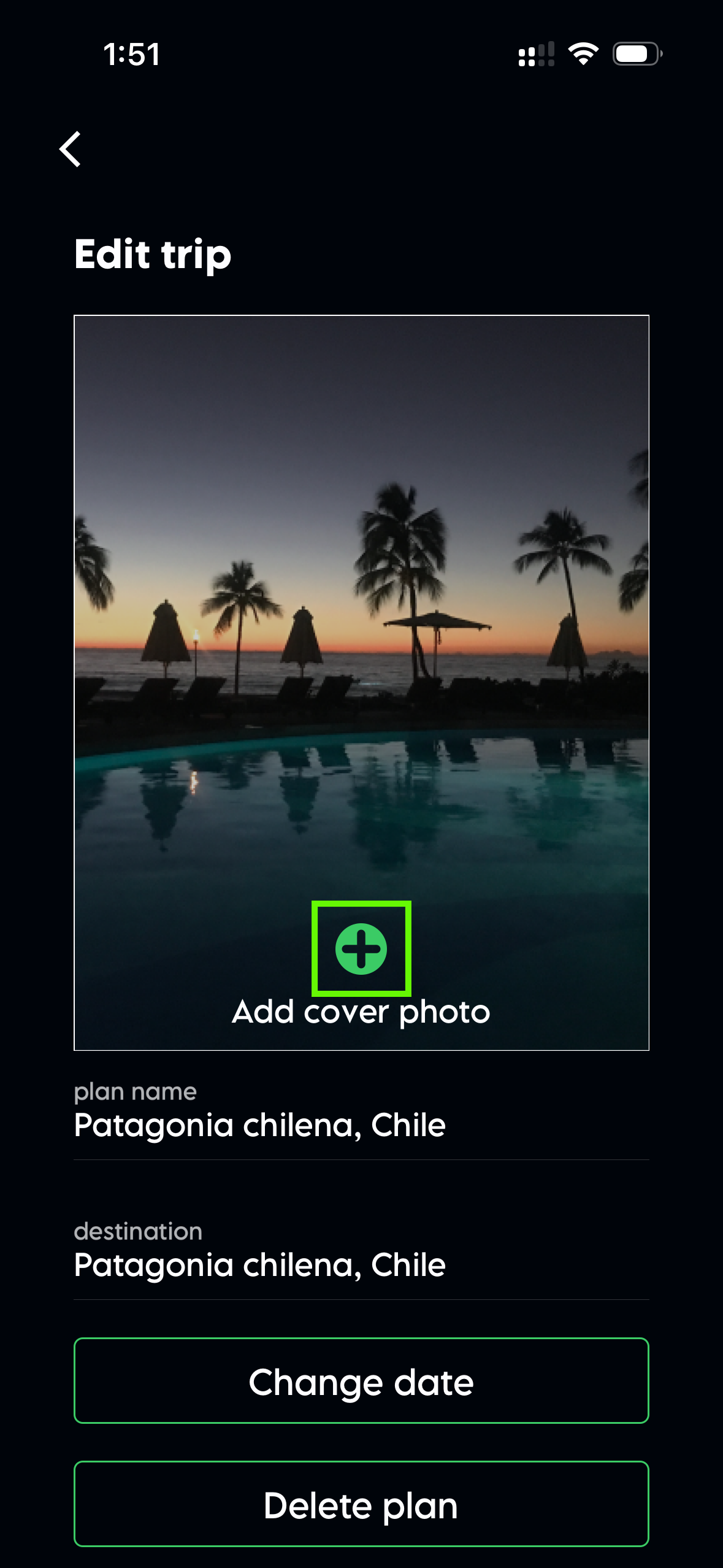
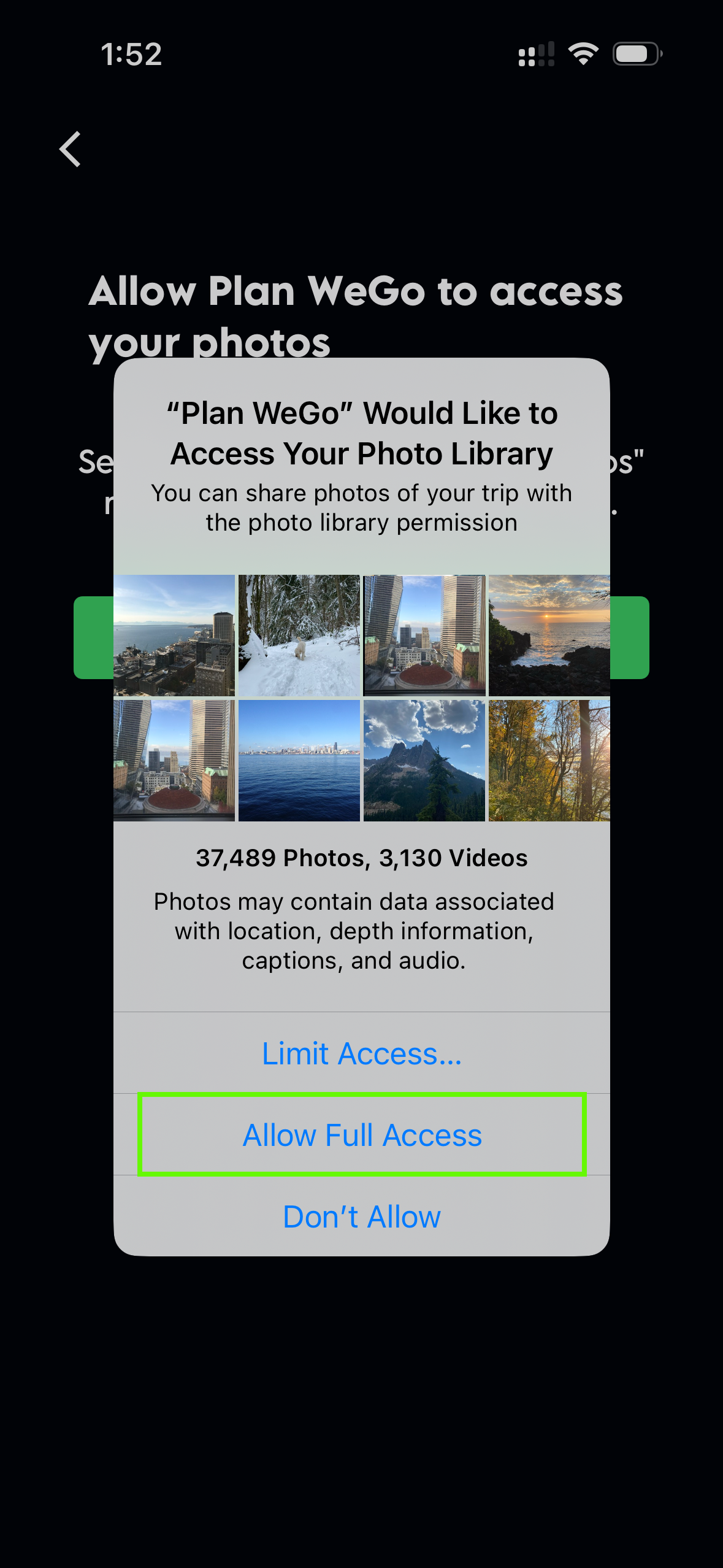
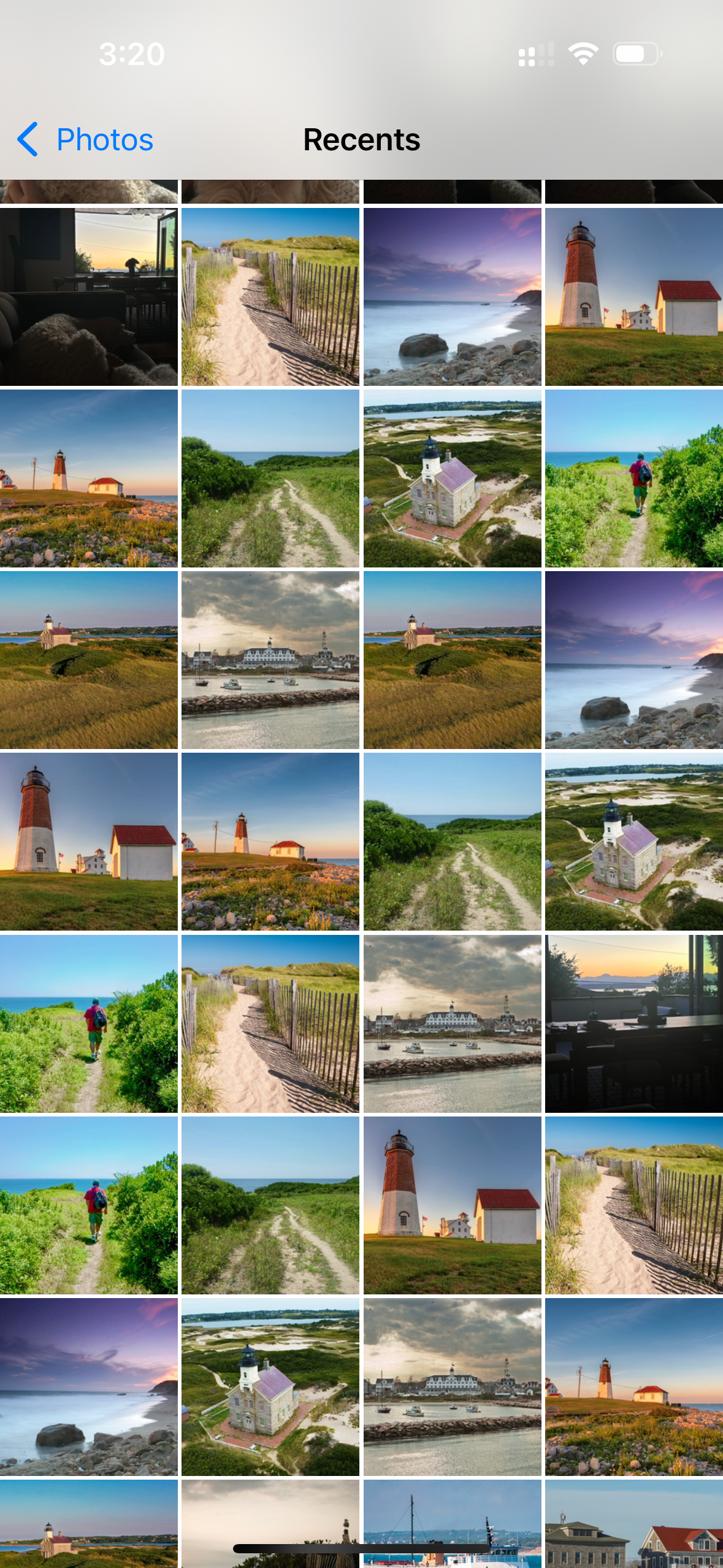
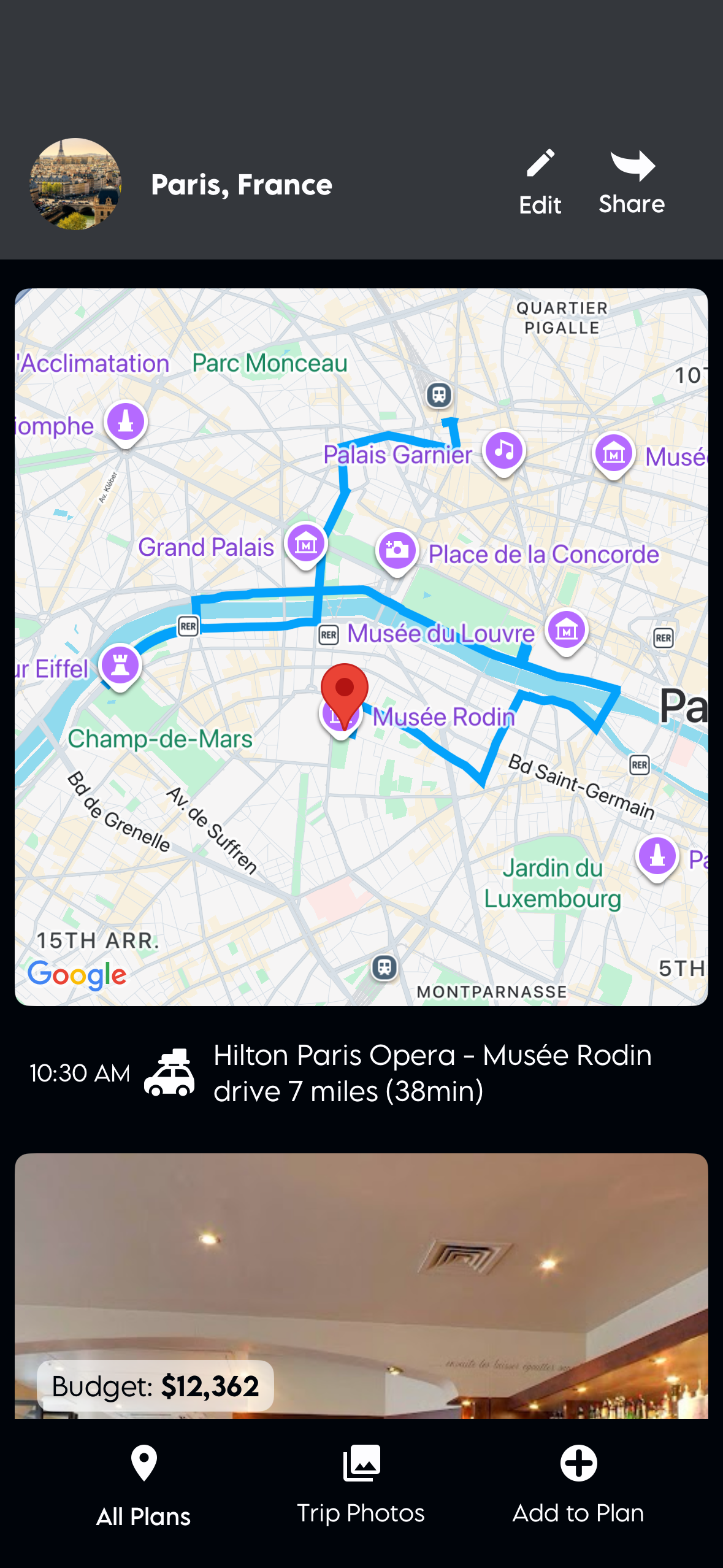
At the top of your plan, there’s an edit button. Tap the add button to change the cover photo. Allow Plan WeGo to access your photos and select one from your photo library.
Edit a road trip
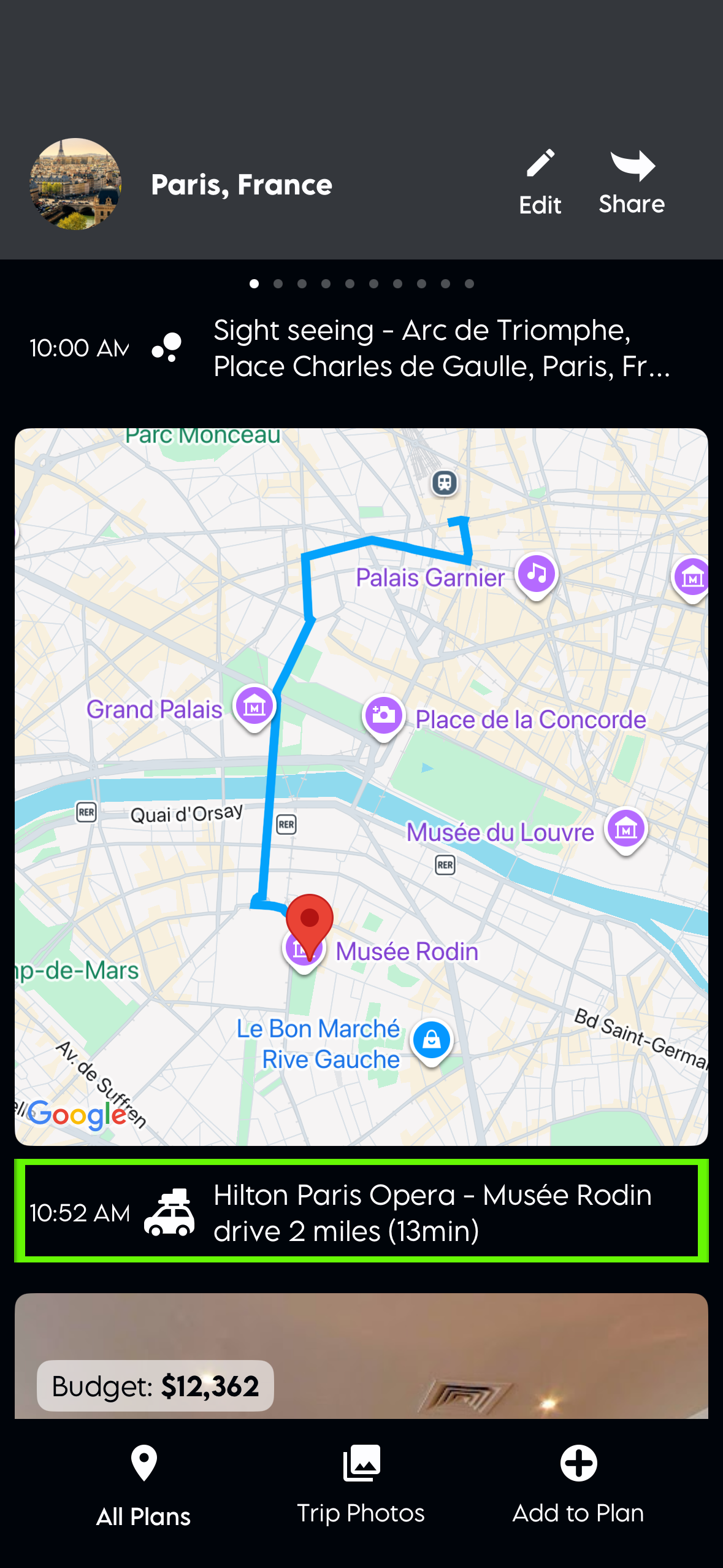
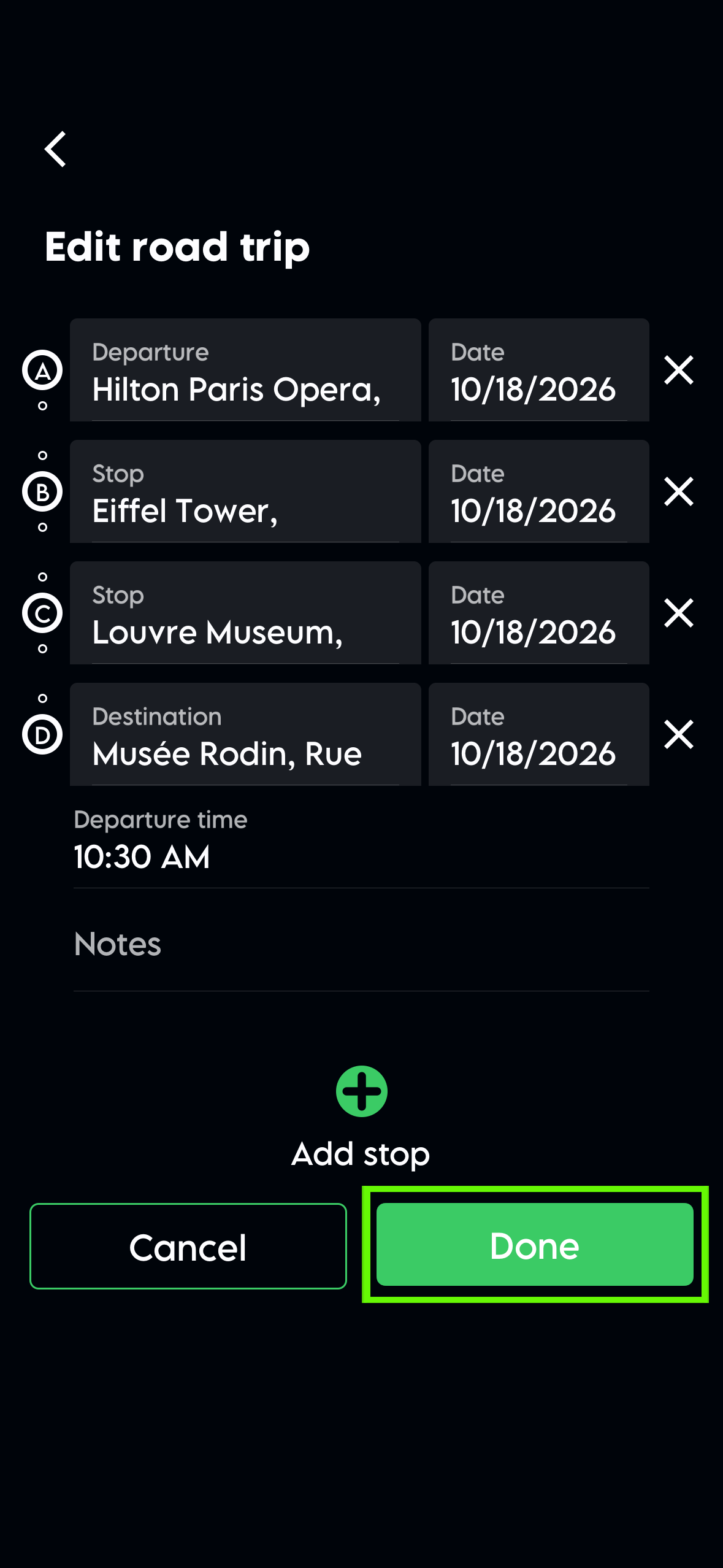
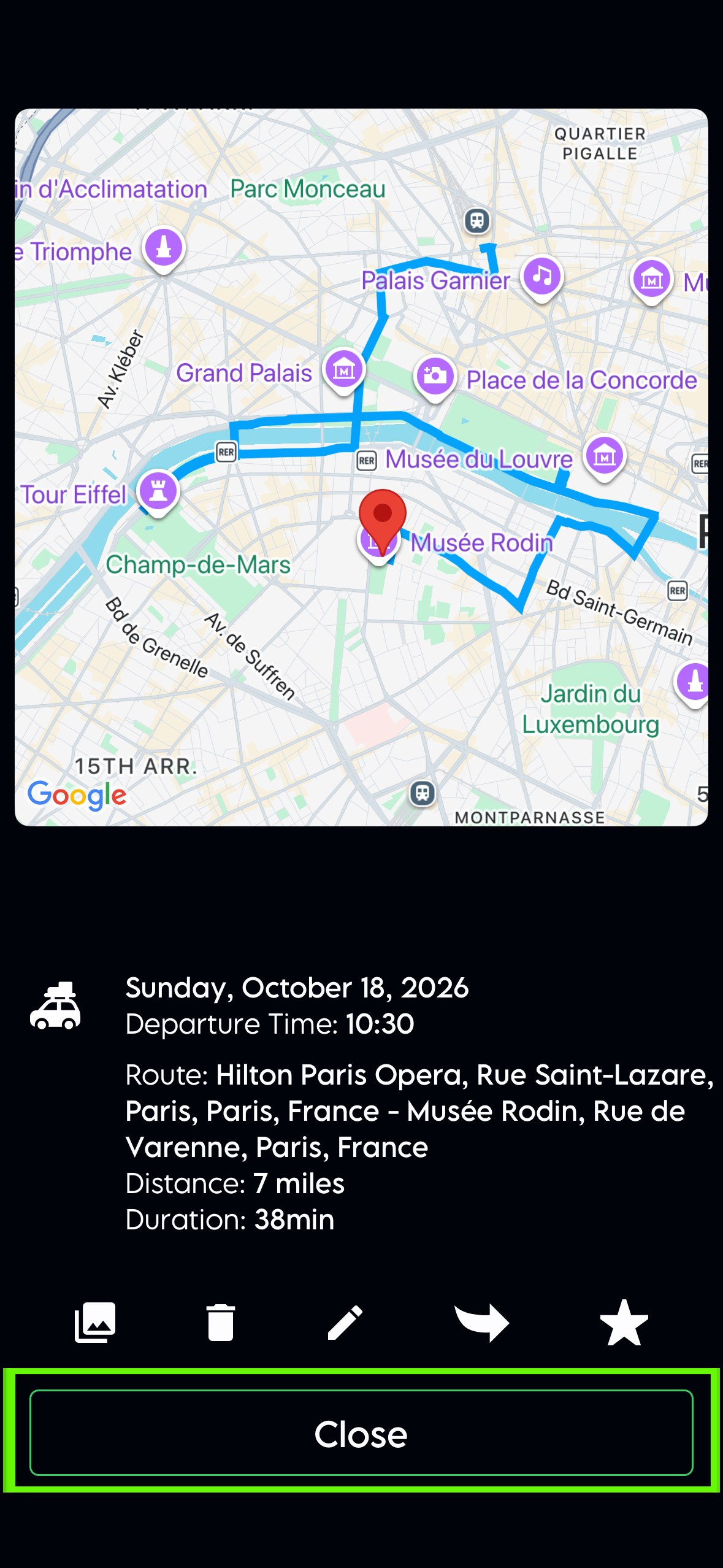
You can edit a road trip by tapping it in the plan view and selecting edit below the map. You can add or remove stops and change their dates.
Delete a plan
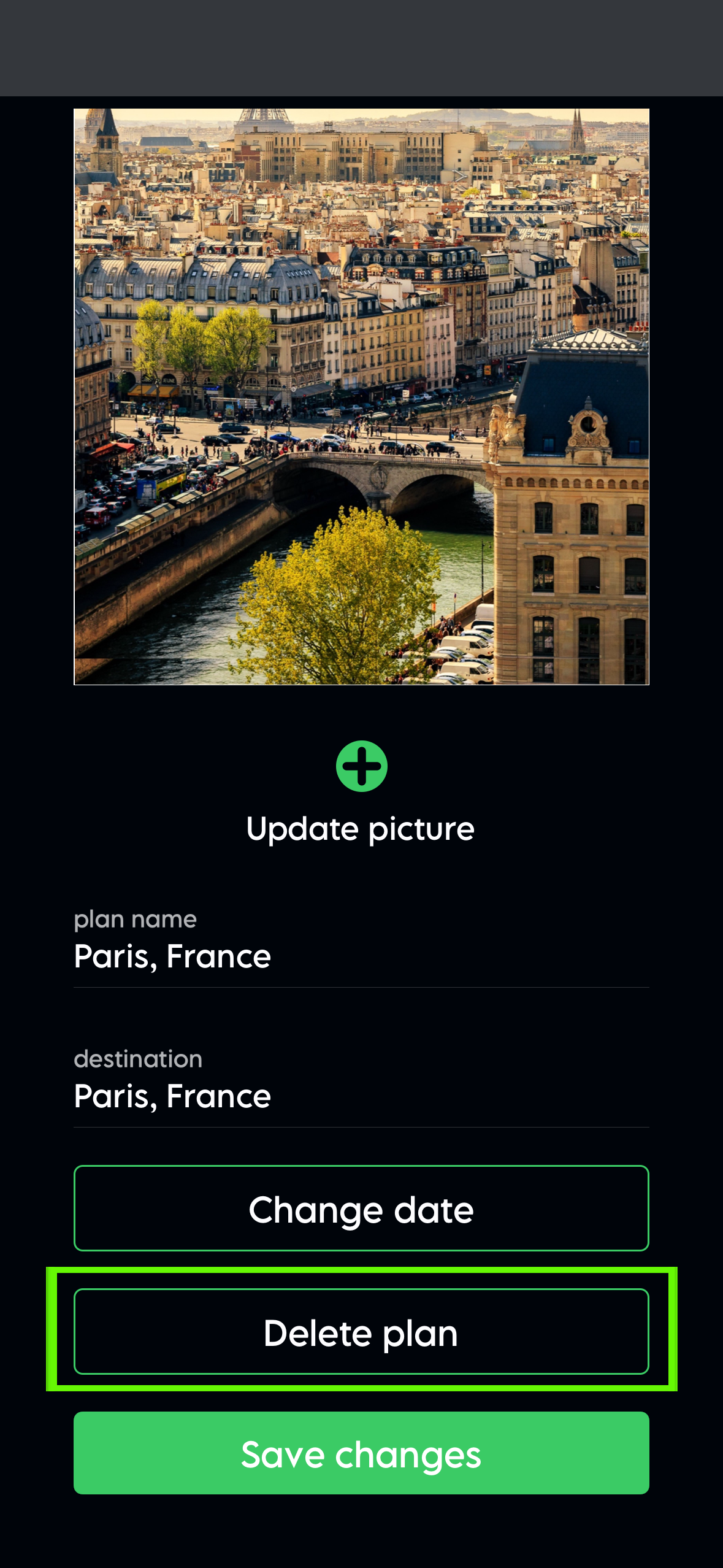
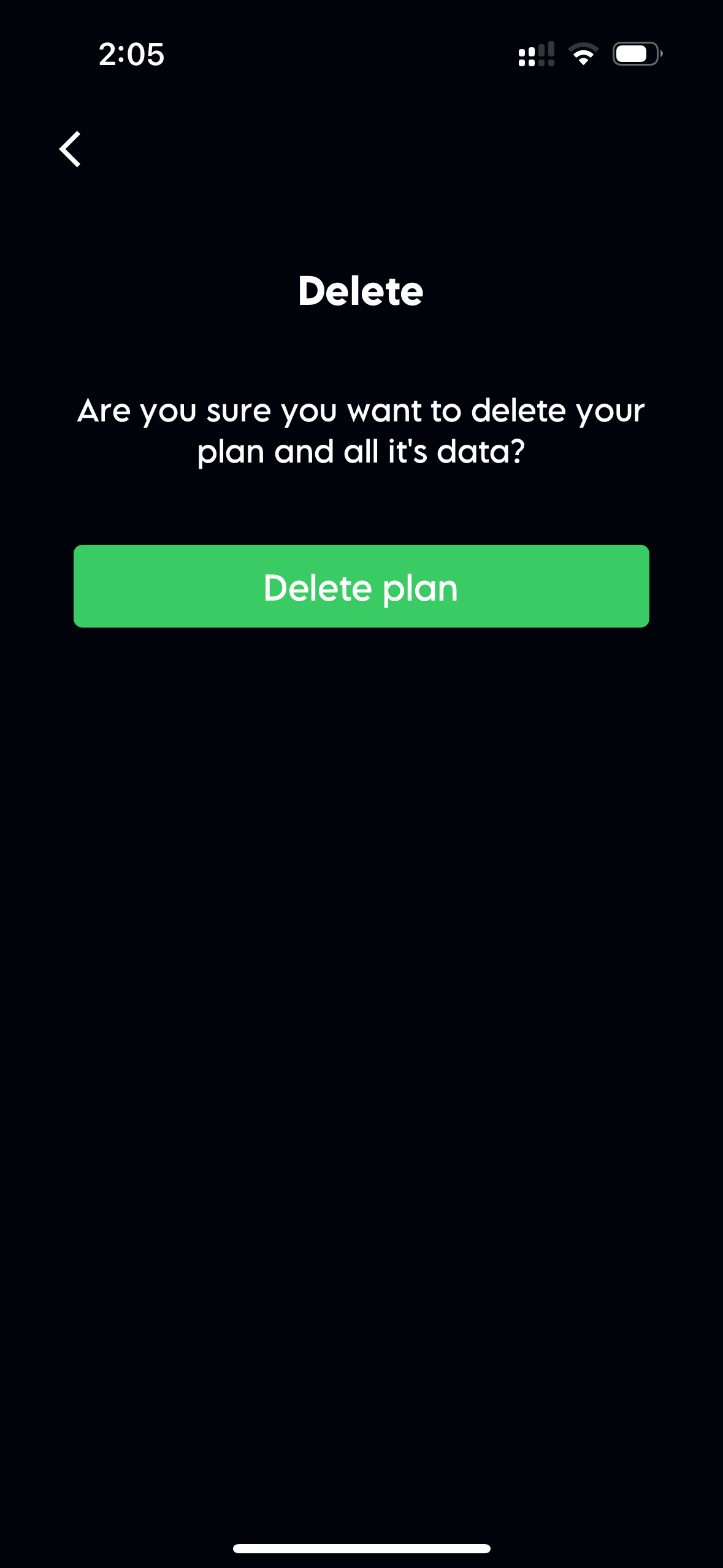
Open the plan, select the edit icon in the header, scroll bellow the cover photo and select the "Delete plan" button and then press "Delete plan".